- Data Recovery
- Data Recovery for PC
- Data Recovery for Android
- Data Recovery for iPhone/iPad
- Unlock For Android
- Unlock for iPhone/iPad
- Android System Repair
- iPhone/iPad System Repair

Updated By Soha On Dec 1, 2025, 7:58 pm
Are you troubled by video watermarks? We know that many videos online have watermarks when watched. Sure, you can solve this problem by paying. So, is there a free and effective way to remove watermarks from videos? The answer to this question is affirmative. If you want to know how to remove watermarks from videos for free, you mustn't miss this article. We are going to recommend two highly praised video watermark removal solutions to you: Geekersoft Watermark Manager, ApowerEdit and PicWish.
Many people know that Geekersoft Watermark Manager, as a software specifically designed for handling multimedia files, can help users intelligently remove various marking elements in videos, such as dynamic watermarks, brand logos, timestamps, subtitles, and any unnecessary elements. Another reason why Geekersoft Watermark Manager is highly praised by users is that its operation is very simple. Just click the mouse and you can quickly remove videos.
The main features of Geekersoft Watermark Manager:
Supports mainstream video formats such as MP4/FLV/MOV/WMV.
The operation interface is simple, efficient and user-friendly.
Provide batch processing functionality.
For information on how to remove video watermarks using Geekersoft Watermark Manager, you can refer to the following steps:
Step 1 Install and launch Geekersoft Watermark Manager on your PC.
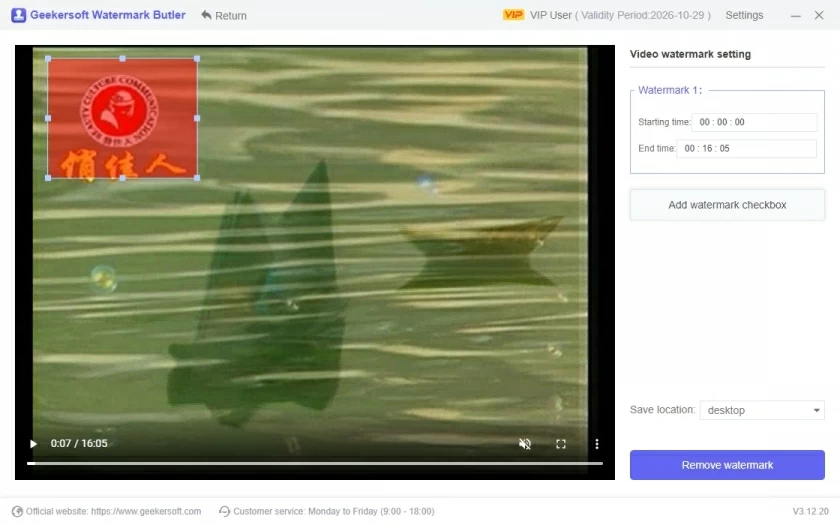
Step 2 After selecting "Remove Video Watermark", click the "+" on the interface to import the target video file from which the watermark needs to be removed.
Step 3 Use the "Selection Tool" to drag the red rectangular box to mark the watermark area, click the "Clear" button to start intelligent processing, and then you can save the watermark-free video to your local device.
In addition, for videos without full watermarks, you can click "Add Clip" > "Trim Tool", set the start and end times of the clips with watermarks, achieve precise local processing, and avoid affecting the clips without watermarks.
However, the editing function of Geekersoft Watermark Manager is relatively basic, and the Windows platform only offers one free trial opportunity.
PicWish can also help you remove watermarks from videos. With integrated advanced AI technology and its simple functions, you can easily obtain clean, watermark-free video final products. PicWish can meet diverse editing needs and can be regarded as a one-stop multimedia editing solution.
Core advantages of PicWish:
Relying on advanced AI algorithms, it has powerful processing capabilities and can effectively detect and remove various complex watermarks (such as logos, text, timestamps, etc.) in videos, outputting clear and professional videos.
The video removal is precise and fast, significantly improving the efficiency of watermark removal.
The platform interface design is intuitive and the operation process is simple. No skill background is required. Anyone can quickly get started without learning and easily complete the task of removing video watermarks.
PicWish also supports a series of photo editing functions such as background removal, image restoration, and image quality enhancement.
Removing video watermarks with PicWish only takes a few simple steps
Step 1 Obtain and install the PicWish app through official channels.
Step 2 Click "Remove Video Watermark", import the target video file, and the platform will automatically or guide you to complete the marking of the watermark area.
Step 3 After the processing is completed, preview the watermark-free video effect. If you are satisfied, you can download and save it to your local device.
Overall, PicWish's AI technology can minimize human intervention to the greatest extent, intelligently restoring the background while removing watermarks, ensuring a natural and smooth video viewing experience. It is applicable to various types of watermarks and provides users with a high-quality, automated watermark removal experience.
In addition, you can also choose ApowerEdit to remove the watermark from the video. This is a fully functional video editing software that offers features such as cropping and Mosaic, which can be effectively used to remove watermarks from videos. The software has an intuitive interface and is easy to operate. You can quickly get started without learning. Of course, it also offers a variety of editing functions such as clipping, cropping, filters, adding text and transitions, making it an ideal solution for video optimization.
To remove video watermarks using ApowerEdit, you can refer to the following steps:
Step 1 Install and start ApowerEdit on your PC. Start the software and import the video files that need to be processed into the media library.
Step 2 Right-click on the file and select "Add to Project" to add it to the timeline.
Step 3 Then you can choose from two different methods to remove the watermark.
Method 1 Click on the "Crop" option in the toolbar. In the pop-up window, adjust the crop box to directly crop out the part of the picture with the watermark.
Method 2 Click on the "Mosaic" option in the effect bar. Select a suitable Mosaic style, drag and drop it onto the overlay track above the video track, and adjust its position and duration to completely cover the watermark.
Step 4 After completing the editing, click "Export", select "Export Video" to set and generate a watermark-free video.
If you need to permanently and thoroughly remove watermarks from your video, you can also use professional and reliable screen recording software, such as Geekersoft Free Online Screen Recorder. Geekersoft Free Online Screen Recorder can help you record any content you want without leaving watermarks. Of course, Geekersoft Free Online Screen Recorder enables users to record both the screen and the camera simultaneously, and there is no limit to the recording duration. Users can preset the output format and video codec as needed. After the recording is completed, the video will be saved in high definition. In addition, it also offers a wealth of video editing tools, which is very convenient. If you want to play videos offline or remove video watermarks, the desktop program of Geekersoft Free Online Screen Recorder, a free online screen recording tool, is your ideal choice. It can help you take screenshots and record videos anytime and anywhere.
For information on how to use Geekersoft Free Online Screen Recorder to remove video watermarks, you can refer to the following steps.
Step 1 Install and launch Geekersoft Free Online Screen Recorder on your PC, and click "Start Recording".
Step 2 According to the prompts, set various parameters in the option list, such as output format, mouse animation, etc. Check the "Audio Input" option, such as system sound.
Step 3 Select to record a specific area or the full screen, including adding the webcam footage to the screen. Then, click the "Record" button to start recording.
Warm reminder: During the recording process, you can edit the video in real time to beautify the picture. After the video is created, you can save it as a local file or directly upload it to social platforms such as YouTube.
The "Delogo" feature provided by VirtualDub can help you quickly remove watermarks or logos from videos. VirtualDub is a professional and powerful watermark removal tool chosen by many users. It offers simple operation steps, and just a few steps are needed to remove watermarks from videos. The specific operation steps are as follows.
Step 1 Install and start VirtualDub on your PC, and then open the video file from which you need to remove the watermark.
Step 2 Click "Video" > "Filter" > "Add", and select the Delogo filter.
Step 3 In the video preview window, pull the progress bar to locate the screen where the watermark appears.
Step 4 Click "Analyze" > "Save Frame" to save the current frame as a bitmap file. Then, use the image editing tool to open the saved image, completely cover the watermark area with red marks, and then save it with the same file name.
Step 5 Return to the Delogo tool, click "Repair" > "Load", select the image file you just edited, save the Settings, and the watermark will be removed.
For iOS users, Video Eraser - Remove Logo is also a good choice. Users can not only easily remove watermarks from videos, but also add or edit them. Its main advantage lies in its simple interface and intuitive operation, making it very suitable for beginners to use.
The specific operation steps are as follows.
Step 1 Download and install the application from the App Store. After opening the application, click the "+" to import the video from which the watermark needs to be removed.
Step 2 Click the video icon, select "Remove Watermark", and drag the rectangular box to cover the watermark area. Then press the "Start" button and wait for the processing to complete.
Step 3 You can view and save the video with the watermark removed in the "Processed" TAB.
Android users, on the other hand, can choose the "Remove and Add Watermark" app. This software supports the removal and addition of watermarks for videos and images, as well as tools such as the Rectangle tool and lasso tool.
The specific operation steps are as follows.
Step 1 Download and install the app from the Google Play Store.
Step 2 Open the app and click "Select Video" > "Remove Logo".
Step 3 After importing the video from the media library that needs to have its watermark removed, use your finger to select or paint the watermark area. Click "Save", and wait for the processing to complete before saving or sharing the video.
The above are the 7 effective tools for removing watermarks that we have introduced to you. Each of them has its own advantages and disadvantages. You can choose according to your own situation. Among them, Geekersoft Watermark Manager is the best choice because it is suitable for removing watermarks from videos and photos, and also allows the addition of watermarks.