- Data Recovery
- Data Recovery for PC
- Data Recovery for Android
- Data Recovery for iPhone/iPad
- Unlock For Android
- Unlock for iPhone/iPad
- Android System Repair
- iPhone/iPad System Repair

Updated By Cameron On Nov 30, 2025, 7:33 pm
"How do I recover lost contacts on my Huawei mobile phone?"
In the information age, data loss occurs all the time. With its excellent technological innovation, powerful hardware configuration and excellent user experience, Huawei mobile phones occupy an important position in the global smartphone market. If you accidentally delete or lose your contacts on your Huawei Android phone, don't worry, there are still opportunities to easily recover those contacts. Unlike computers, Huawei phones don't have recycling bins or bins to temporarily store deleted files. However, there are several ways users can recover deleted contacts.
Regular backups are the most basic way to protect your data. Huawei mobile phones also provide automatic backup services for users. That said, if you backed up your contacts to a Huawei cloud, external storage device, or MicroSD card before they were lost via Gmail sync, Huawei Backup app, or HiSuite, recovering your contacts will be very simple. You can use the following five methods to restore deleted or lost Huawei mobile phone contacts from the backup.
If you have enabled Huawei Cloud backup, perform the following steps to restore contacts:
Step 1 Open your Huawei mobile phone and enter the Settings app. Follow the prompts to click "Huawei Account" and log in to your account (make sure to use the same account as the backup).
Step 2 In Settings, locate and click Cloud Space or Backup and Restore, and then select the Cloud Backup option.
Step 3 In the backup list, find the latest backup file (Ensure that the backup contains contact data). Finally, click the "Recovery" button, select the "Contacts" option, and wait for the recovery to complete.
If you backed up your contacts on your computer using HiSuite, the steps are as follows:
Step 1 Download and install Huawei HiSuite on your PC. (Visit Huawei official website to obtain the latest version.) Connect your Huawei phone to your computer using a USB cable and turn on HiSuite.
Step 2 On the HiSuite home screen, click Data Recovery. Then select the backup file you created earlier and click "Next".
Step 3 Under Recovery options, select Contacts and click Start Recovery. After the recovery is complete, disconnect the phone from the computer and check whether the contact has been recovered.
If your Huawei mobile phone contacts have been synchronized through your Gmail account, you can perform the following steps to restore them:
Step 1 Turn on your phone, go to Settings > Account > Add Account, and log in to your Gmail account.
Step 2 In Account Settings, locate your Gmail account and click Synchronize Contacts. After the synchronization is complete, the contact is automatically restored to the phone.
If you have created a local backup on your Huawei phone storage or SD card, you can restore it by following the steps below:
Step 1 Turn on your mobile phone and choose Settings > System and Update > Backup and Restore.
Step 2 Click Restore from Internal Storage or Restore from External Storage (depending on the backup location). Locate the backup file that contains the contact data and click "Restore".
Step 3 In Recovery options, select Contacts and click Start Recovery.
If you have your contacts stored in your SIM card, you can recover them by following these steps:
Step 1 Open the Contacts app and tap the menu button (three dots) in the upper right corner.
Step 2 Choose Settings > Import/Export Contacts. Select Import from SIM Card and follow the prompts.
If you accidentally delete contacts on your Huawei mobile phone or replace it with a new device, you can use the above backup methods to quickly restore contacts. At the same time, the following precautions can help you better ensure the security of your data.
- Periodic backup: You are advised to periodically back up contacts using the Huawei Cloud, HiSuite, or Gmail synchronization function to prevent data loss.
- Check backup time: Select the latest backup file when restoring to ensure data integrity.
- Avoid overwriting data: During the recovery process, be careful not to overwrite existing data.
Huawei mobile phone users who do not regularly back up contacts can still restore deleted contacts from the memory of the phone, provided that the data is not overwritten. Among many Huawei mobile phone contact Recovery tools in the industry, we recommend you to use Android Data Recovery after comprehensive comparison and repeated trials. The data recovery tool supports the recovery of many types of files, including contacts, text messages, photos, videos, call logs, and more. And the data recovery tool has a user-friendly interface that even novices can quickly master.
Click the link to download: Android Data Recovery
For details about how to use Android Data Recovery to recover Huawei mobile phone contacts that have been deleted or lost, see the following:
Step 1 Install and run Android Data Recovery on your computer, then select the "Android Data Recovery" option.
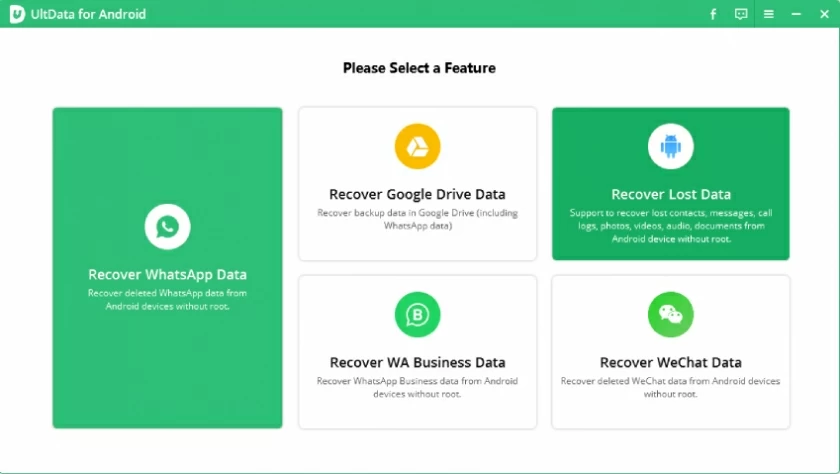
Step 2 Connect the Huawei mobile phone to the PC using a USB cable. And according to the screen prompts, enable USB debug mode on the phone.
Step 3 On the software interface, select the type of files to be scanned, click Contacts, and then click Next. The software starts to scan for deleted files.
Step 4 After scanning is complete, you will see all deleted and existing files. Select "Show only deleted items" to filter the deleted contacts. Then select the contact you want to restore, click the
"Restore" button, and save the restored contact to the specified location.
After the recovery is complete, you can find the contact file in HTML, CSV, or VCF format in the specified folder. Then import these files back to Huawei mobile phones or other Android devices.
If all your contacts are not displayed in the contact list of your Huawei phone, you may also think that they are lost. In fact, they're just hidden. At this point, you can check and display all your contacts by following these steps:
Step 1 Open the Contacts app and tap the menu button (three dots) in the upper right corner.
Step 2 Select Settings or Personal Settings, and then click Contact Display.
In the dialog box that pops up, make sure the "All Contacts" option is selected to show all contacts.
These are the effective methods we introduce to you to find your deleted or lost Huawei mobile phone contacts. You can restore it by backing it up, or you can try the Settings to show all contacts that may have been hidden. However, when these methods fail, Android Data Recovery is the ideal choice for you, as it can help you recover Huawei phone contacts without a backup.